
TABLE OF CONTENTS
- Introduction
- How to Access the Resources
- ️Conditions
- Smears
- Vaccinations
- Overall Achievement
- FAQ
- Additional Learning
Introduction
Background
How Ardens Can Help
- Improving disease prevalence through case finding
- Ensuring timely completion of QOF indicators
- Monitoring performance and achievement
- Streamlining patient recall processes
How to Access the Resources
Reports:
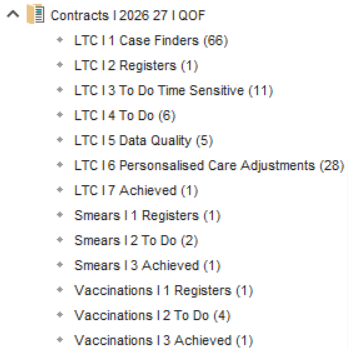
- Go to Clinical Reporting.
- Expand the Arden's Ltd folder.
- Select Contracts I 2026 27 I QOF.
Templates:
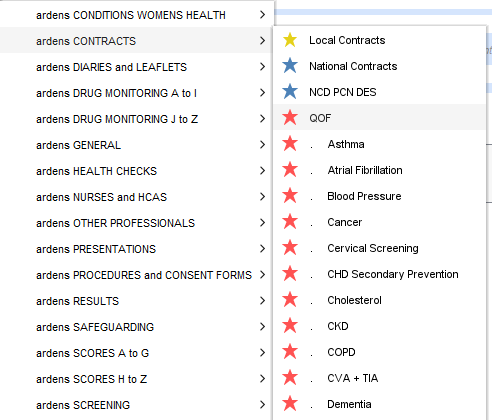
- Click Auto-Consultation.
- Select ardens CONTRACTS > QOF.
- You can also access the specific condition QOF templates from this list.
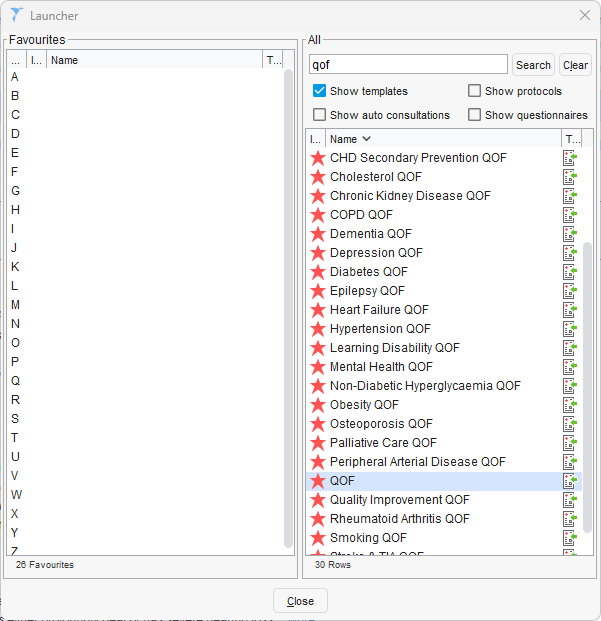
- Alternatively, press F12
- In the box that pops up, type QOF
- Any template with a Red Star will be an Ardens QOF template.
- Double click on the template of your choice to open it.
- You can also drag and drop a template to the left hand 'Favourites' section for easy access later on.
️Conditions
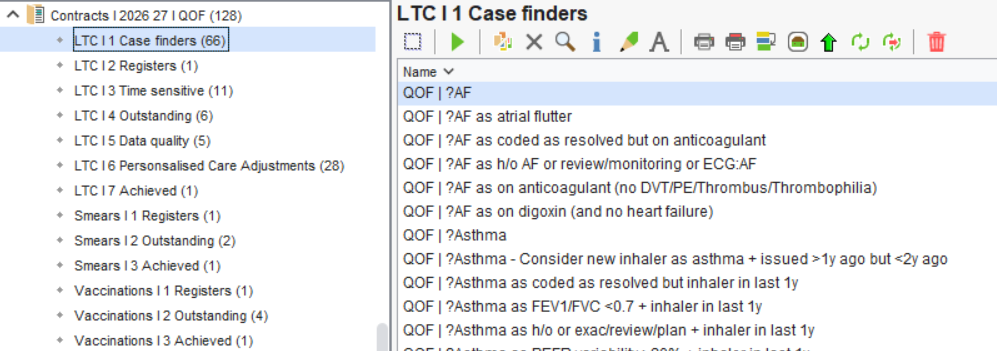
Case Finders
Examples include:
- Patients coded as resolved, but recently issued medication for the condition
- Patients with a history code and recent related activity
- Patients with investigation results suggesting a condition should be recorded
For detailed guidance on using the Case Finder reports, please refer to this support article.
Register
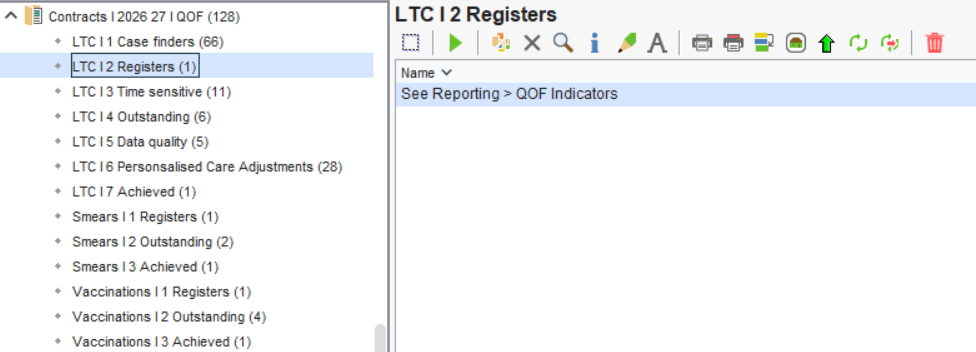
The register reports provide a summary of the number of patients recorded on each condition register. These reports are for informational purposes only and support visibility of current register sizes.
The existing built in SystmOne reports can be used for this, by going to Reporting > QOF Indicators within SystmOne.
Time Sensitive
- Asthma diagnosis requires an objective test 3 months before or after diagnosis.
- Diabetes structured educational referral within 9 months.
- Heart Failure diagnosis confirmation within 6 months.
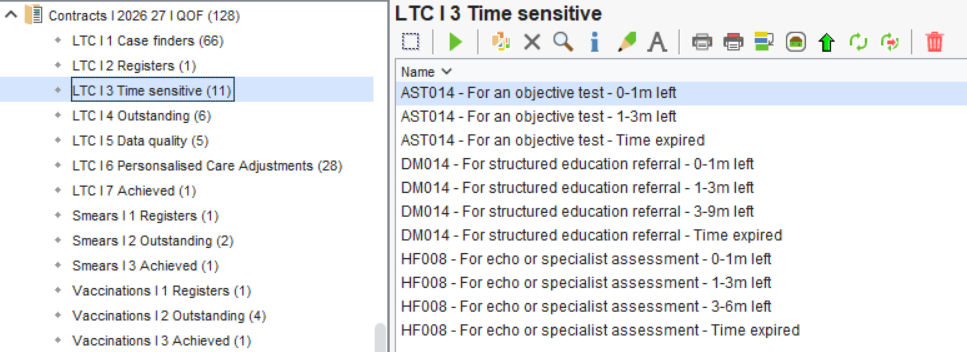
Reports with a 'time left' period will include patients where there is time remaining to achieve the indicator. The reports are separated by distinct periods based on established indicator rules.
Reports indicating 'time-expired', will identify patients where time has lapsed for the work to be completed within the designated timeframe.
Important Considerations
- HF008 - This indicator focuses solely on the time intervals before diagnosis and after registration (for newly registered patients). Consequently, the time remaining reports consider only the duration after registration, while the time-expired reports encompass both pre- and post-registration periods.
- Time Expired - Although these reports identify patients who have exceeded the designated timeframe for completion, it is advisable to review these records to ascertain whether the work has been performed but not coded, or coded with a non-QOF code. Additionally, pursuing these patients from a patient care perspective may still be warranted.
- Exceptions - All reports exclude patients with a recorded exception (personalised care adjustment) in accordance with the business rules for the indicator.
- Exclusions - Most QOF indicators automatically exclude patients who have been registered or diagnosed within the last three months of the year. These reports will not exclude such patients, and they will be included unless the work has been completed or an exception has been recorded (notably, failure to complete the work by year-end will not result in penalties from a QOF perspective).
- Appointments - None of the time-sensitive reports account for whether a patient has an existing appointment. It is advisable to check this, prior to extending invitations or making contact.
Outstanding
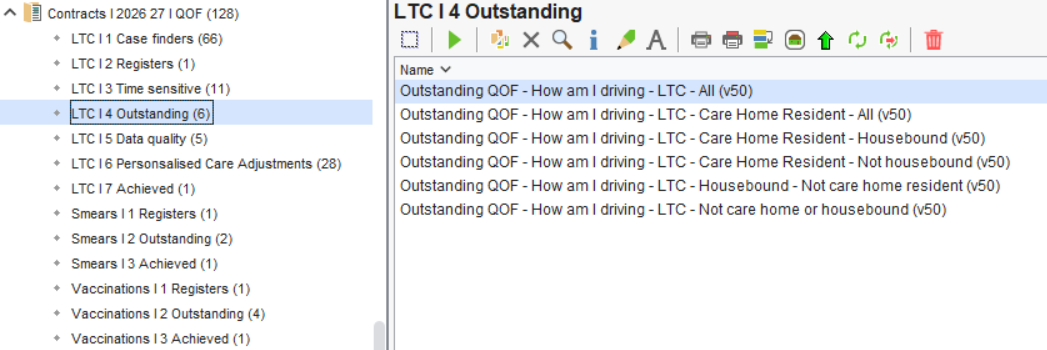
- Ardens LTC Annual Recall System
- Ardens LTC templates
- Ardens condition templates
Data Quality
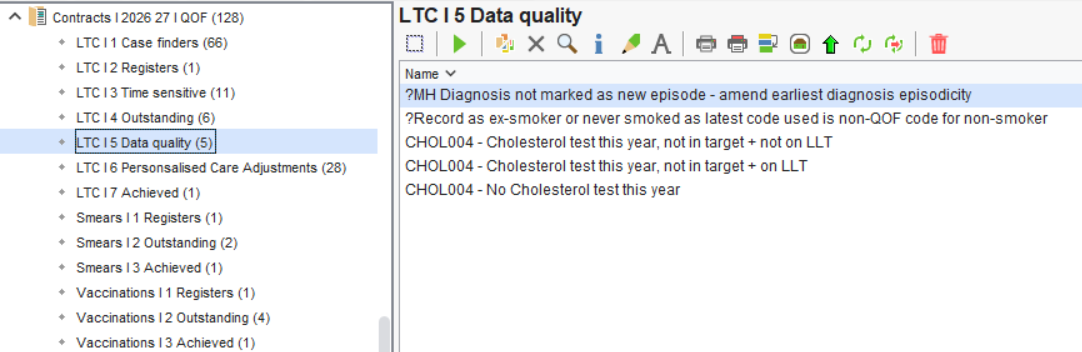
Examples include:
- Missing codes that need to be added
- Incorrect coding that requires correction
- Coding that needs review for accuracy
- Incomplete records that require further information
Personalised Care Adjustments
For more information on these reports, please see this section of the LTC Recall support article.
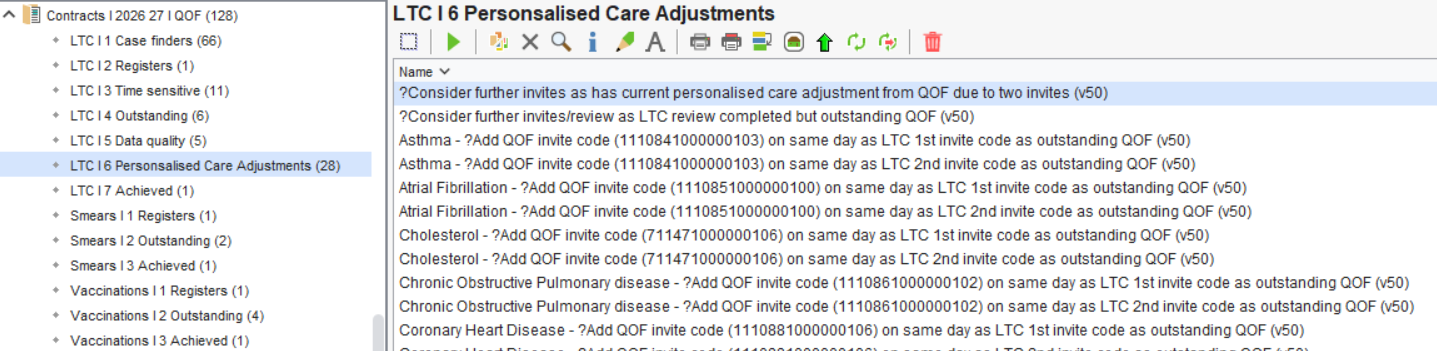
⚠️ Please note: For SystmOne practices, adding the QOF invitation code twice will automatically apply a Personalised Care Adjustment (PCA) and remove QOF alerts from the patient record (exempting them from QOF).
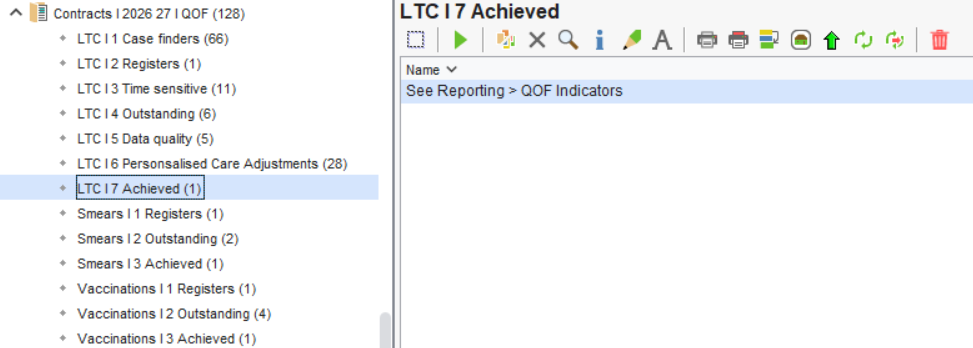
Achieved
The existing built in SystmOne reports can be used for this, by going to Reporting > QOF Indicators within SystmOne.
The Smears folder contains reports to support the management of cervical screening activity for QOF. These reports help practices monitor eligible patients, identify outstanding screening, and ensure accurate coding for achievement.
Smears
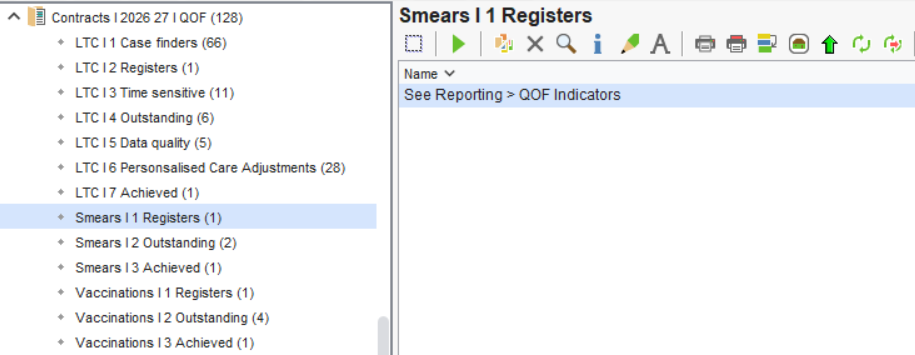
Registers
The existing built in SystmOne reports can be used for this, by going to Reporting > QOF Indicators within SystmOne and opening up the Cervical Screening folder.
Outstanding
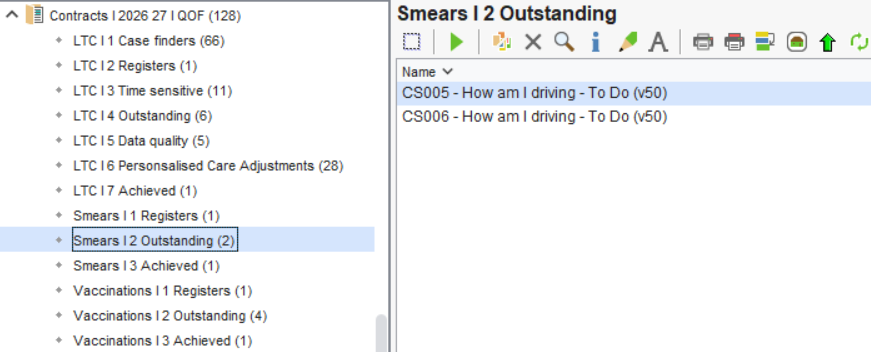
⚠️Please Note: These reports are currently version 50 for 2025/26 and will be updated once TPP have updated the business rules to version 51 for 2026/27 within SystmOne.
Achieved
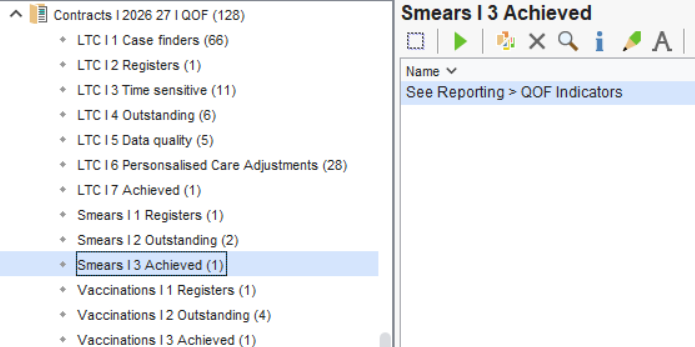
The Achieved reports can be used to monitor smears done in the target timeframes.
The existing built in SystmOne reports can be used for this, by going to Reporting > QOF Indicators within SystmOne and opening up the Cervical Screening folder.
Vaccinations
Registers
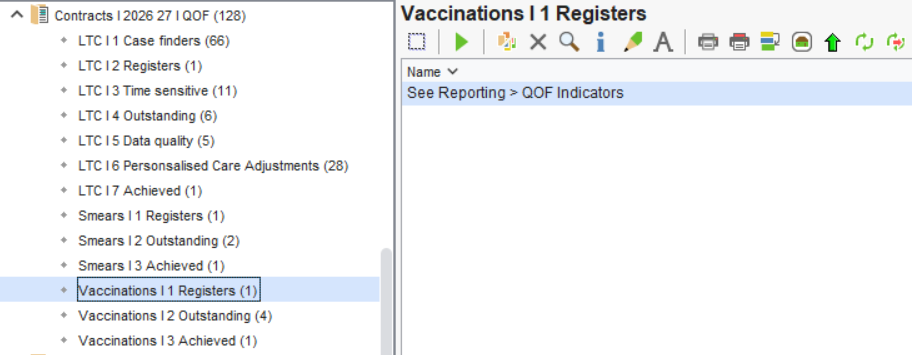
The existing built in SystmOne reports can be used for this, by going to Reporting > QOF Indicators within SystmOne and opening up the Vaccinations and Immunisations folder.
Outstanding
- Childhood Vaccinations
- Shingles
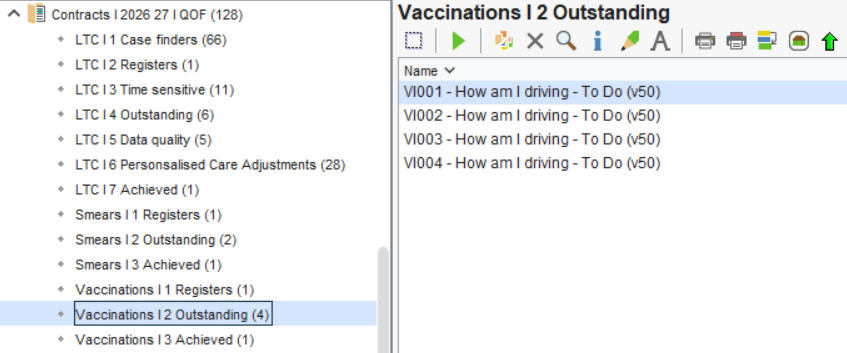
Patients who still require a vaccination for these indicators can be found in Reporting > QOF Indicators within SystmOne. However, there is an overview of these indicators to view the number of patients remaining.
⚠️Please Note: These reports are currently version 50 for 2025/26 and will be updated once TPP have updated the business rules to version 51 for 2026/27 within SystmOne.
Achieved
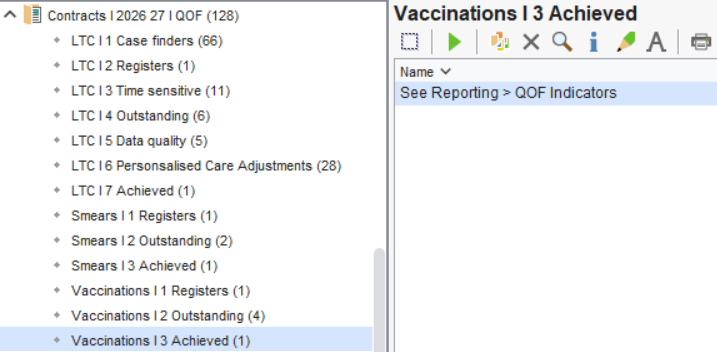
Achievement can be monitored using the SystmOne QOF Indicators screen. These are located within Reporting > QOF Indicators.
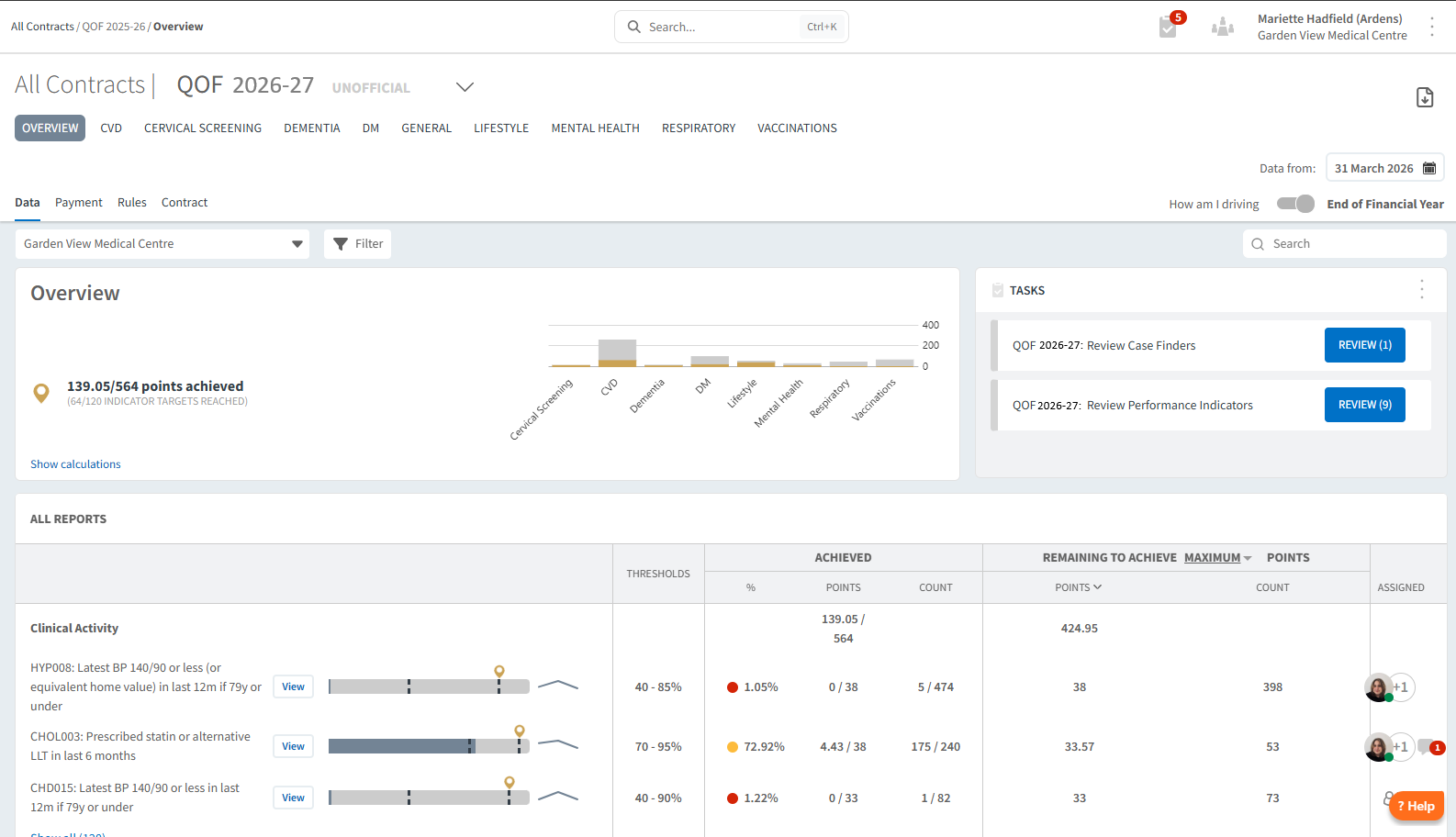
Overall Achievement
FAQ
Additional Learning
- Watch the GP Contract 2026/27 Update Webinar for a demonstration of the resources.
- Explore more helpful Support Articles.
- Book training for your GP Practice, PCN or ICB.