
Plan > Notify > Assess > Review > Evaluate
TABLE OF CONTENTS
- Introduction
- How to Access the Reports
- Invitation Workflow
- How to Send and Code 1st Invitations
- How to Send and Code 2nd Reminders
- How to Send and Code 3rd Reminders
- Sending questionnaires
- Chasing Outstanding Invitations
- How to Action Visit Patients
- Identifying Which Condition a Patient Has Been Invited For
- Additional Support
Introduction
How to Access the Reports
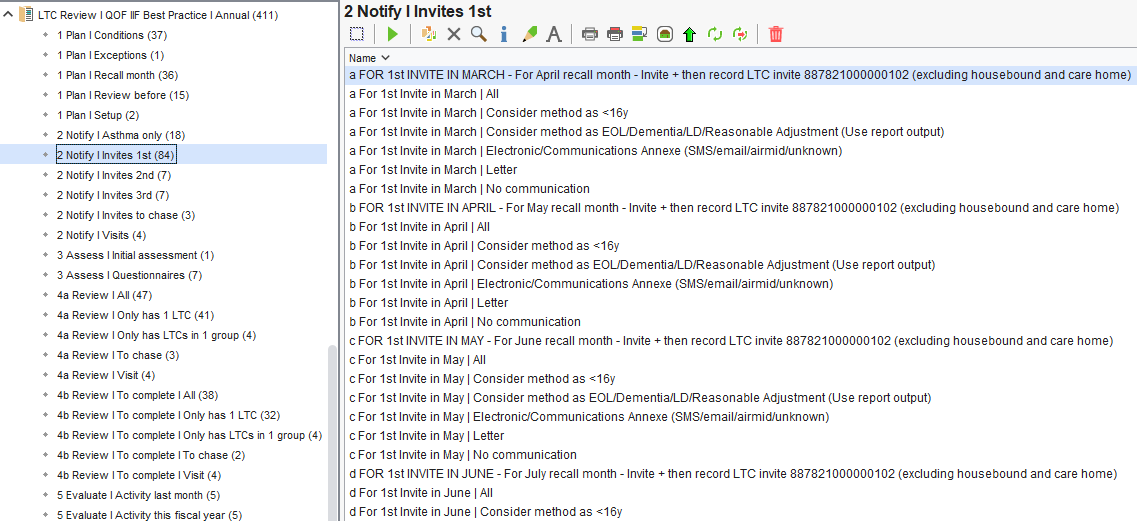
- In the Clinical Reporting screen, navigate to Arden's Ltd > LTC Reviews | QOF | IIF or LTC Reviews | QOF | IIF and Best Practice.
- Select the 2 Notify I Invites sub-folder of your choice.
Invitation Workflow
- First invite: Sent before the patient’s birthday month (or chosen month).
- Second invite: A reminder to send two weeks after the first invite has been sent.
- Third invite: A reminder to send two weeks after the second invite has been sent.
How to Send and Code 1st Invitations
- In the Clinical Reporting screen, navigate to Arden's Ltd > LTC Reviews | QOF | IIF or LTC Reviews | QOF | IIF and Best Practice.
- Select the 2 Notify | Invites 1st sub-folder.
- To find the total number of patients to be recalled for a particular month, run the report for the month before the recall month.
- For example, if you want to identify patients due for an April recall, right click on For 1st Invite in March | All and select Run.
- Repeat this step for other recall months as required (for example, run For 1st Invite in April | All for the May recall month).
- Once the report has run, Right Click > Show Patients
⚠️Please Note: The report name refers to the month the invitation is sent, not the recall month.
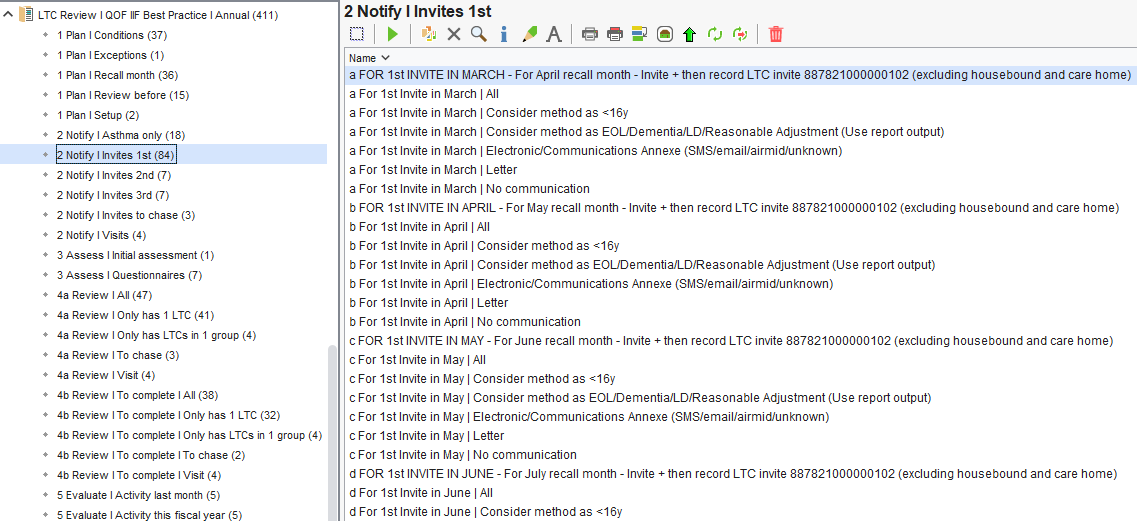
Two reports are available to help practices review patients who may require a different invitation approach:
- Consider method as <16y – identifies patients under the age of 16 within the relevant recall month.
- Consider method as EOL/Dementia/LD/Reasonable Adjustment – identifies patients with End of Life status, Dementia, Learning Disability, or a recorded Reasonable Adjustment.
These reports allow practices to review these patients and decide the most appropriate way to invite them based on their individual needs.
- In the Clinical Reporting screen, navigate to Arden's Ltd > LTC Reviews | QOF | IIF or LTC Reviews | QOF | IIF and Best Practice.
- Select the 2 Notify I Invites 1st sub-folder.
- To review patients who may require a different invitation approach for a particular recall month, run the report for the month before the recall month.
- For example, if you want to review patients due for an April recall, right click on one of the For 1st Invite in March | Consider method reports of your choice and select Run.
- Once the report has run, Right Click > Show Patients
- Repeat this step for other recall months as required (for example, run For 1st Invite in April | Consider method for the May recall month).
Using the report output
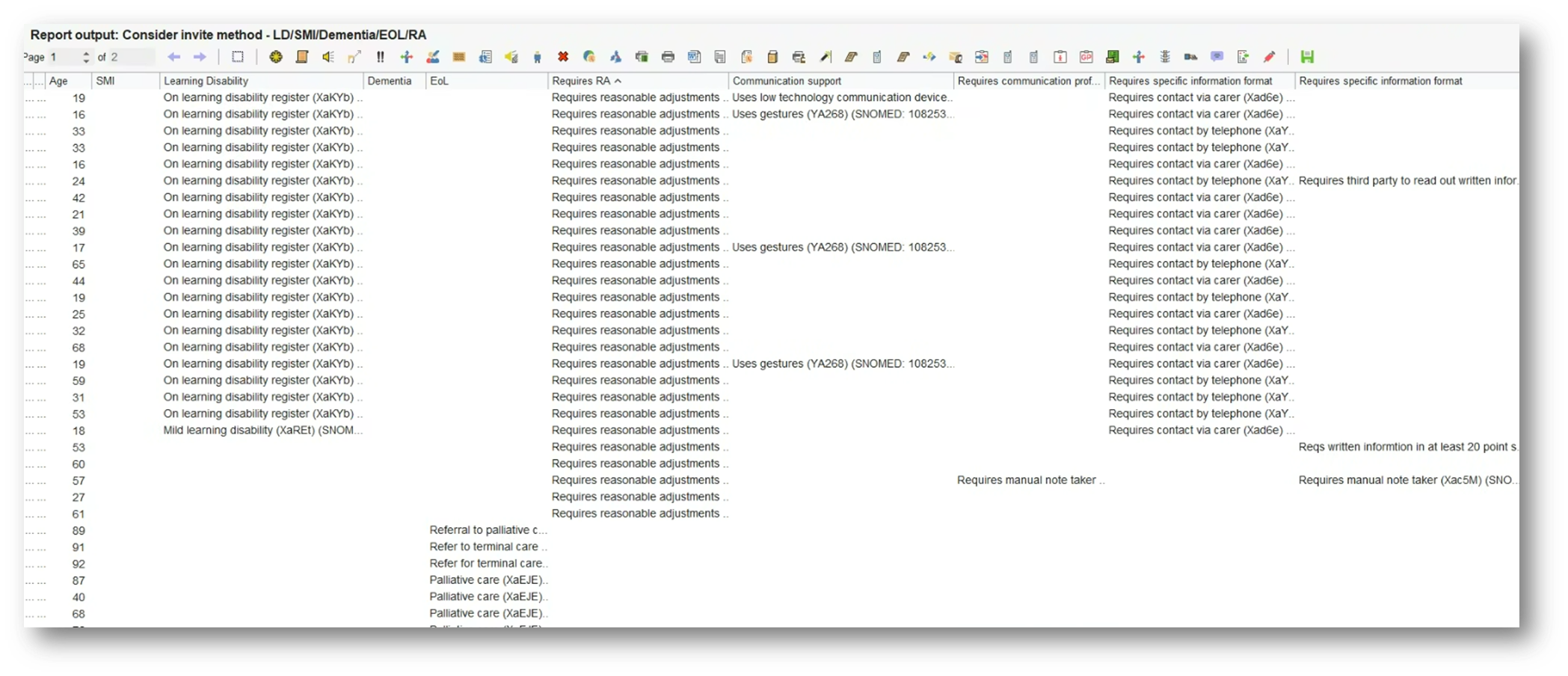
To help identify which group each patient falls into and highlight any recorded reasonable adjustments, a report output has been created for practices to use.
- Run the Consider method as EOL/Dementia/LD/Reasonable Adjustment report.
- Right click the report and select Show Patients.
- Above the patient list, select Select Output.
- In the window that opens, choose Pre-defined report output, then select Consider Invite Method – LD/SMI/Dementia/EOL/RA.
This report output will display additional information to help staff understand why each patient appears in the report.
Practices can then work through the list and decide the most appropriate way to contact or approach each patient regarding their LTC review. Where appropriate, patients can still be contacted in bulk from this list using the usual communication tools.
For patients who do not appear in the Consider method reports, three reports are available to support sending standard invitations:
- Electronic / Communications Annexe (SMS / Email / Airmid / Unknown) – identifies patients who can be contacted electronically using their preferred contact method.
- Letter – identifies patients whose preferred contact method is recorded as Letter, allowing practices to generate invitation letters in bulk.
- No Communication – identifies patients whose preferred contact method is recorded as No Communication, allowing practices to review these patients and decide how best to invite them.
To identify patients for a particular recall month, run the report for the month before the recall month.
The sections below explain how each of these reports can be used to send invitations and record the invite code.
Electronic / Communications Annexe (SMS / Email / Airmid / Unknown)
This report identifies patients whose preferred contact method is SMS, email, Airmid, or unknown. These patients can usually be invited in bulk using an electronic messaging method.
Practices can send invitations using the SystmOne Communications Annexe, or alternatively using a third-party messaging tool such as Accurx, depending on local workflows.
- In the Clinical Reporting screen, navigate to Arden's Ltd > LTC Reviews | QOF | IIF or LTC Reviews | QOF | IIF and Best Practice.
- Select the 2 Notify I Invites 1st sub-folder.
- Right click and select Run on the relevant Electronic/Communications Annexe (SMS/email/airmid/unknown) report for the recall month of your choice.
- Right click the report and select Show Patients.
- Highlight the relevant patients.
- Right click and select Actions > Use Communications Annexe.
- In the Communications Annexe window that opens, tick the 'Use Preferred Contact Method' option at the top.
- In the drop down select whether you want the default message to be 'Send SMS', 'Send email' or 'Send Airmid notification'.
- Click on the icon next to 'Add code' to bring up the code browser. Then search for Chronic disease management annual review invitation (887821000000102). Select this code and click OK.
- Select or write the invitation message (local presets can also be used).
- Click Send to send the message to the selected patients.
By selecting the invite code in the Communications Annexe, this will send the invite AND add the invite code to all patients selected.
This bulk action can also be completed directly from the report name using:
Right Click > Actions > Use Communications Annexe
For more information on using the Communications Annexe and Presets please see this support article
Letter
This report identifies patients whose preferred contact method is Letter. Practices can use this report to generate invitation letters in bulk.
- In the Clinical Reporting screen, navigate to Arden's Ltd > LTC Reviews | QOF | IIF or LTC Reviews | QOF | IIF and Best Practice.
- Select the 2 Notify I Invites 1st sub-folder.
- Right click and select Run on the relevant Letter report for the recall month of your choice.
- Right click the report and select Show Patients.
- Highlight the relevant patients.
- Right click and select Actions > Print Integrated Word Letters.
- The Letter Type window will open. Select the appropriate letter type. (E.g. Recall)
- A second window will then display the letters stored within SystmOne. Ardens invitation letters can be found in Ardens > Invitations
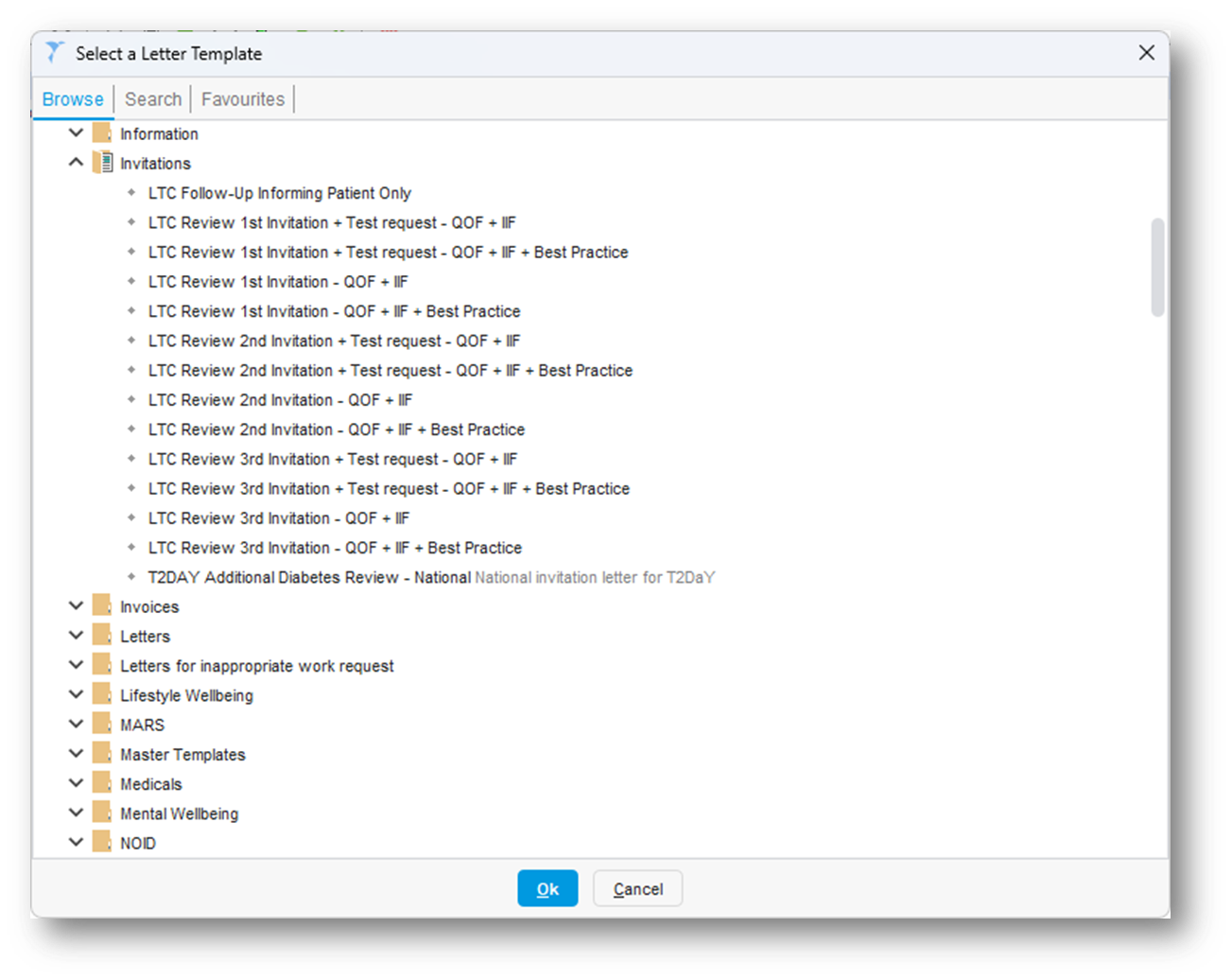
- Select the appropriate letter (for example LTC Review 1st Invitation – QOF + IIF + Best Practice) and click OK.
- The letter will open in Word where it can be reviewed. When ready, select Merge & Print to generate the letters and save a copy in each patient record.
This bulk action can also be completed directly from the report name using:
Right Click > Actions > Print Integrated Word Letters
After letters have been sent, add the invite code as described below.
No Communication
This report identifies patients whose preferred contact method is recorded as No Communication.
Practices should review these patients individually and decide how best to invite them for their LTC review based on local policy or clinical judgement.
If an invitation is sent, the invite code should still be added so the patient is removed from the 1st Invite reports.
Adding the invite code
Once invitations have been sent, the invite code must be added to the relevant patients so they are removed from the 1st Invite reports.
The code used is:
Chronic disease management annual review invitation (887821000000102)
After this code is added, the patient will no longer appear in the 1st Invite reports when they are next run.
Adding the code in bulk
This can be done easily from the patient list returned by the report.
- Run the relevant invite report.
- Right click the report and select Show Patients.
- Select the patients who have been invited.
- Right click and choose Actions > Add Read Code.
- In the window that opens, click on the
 icon next to 'Read Code'.
 - In the code browser, search for and select Chronic disease management annual review invitation (887821000000102)
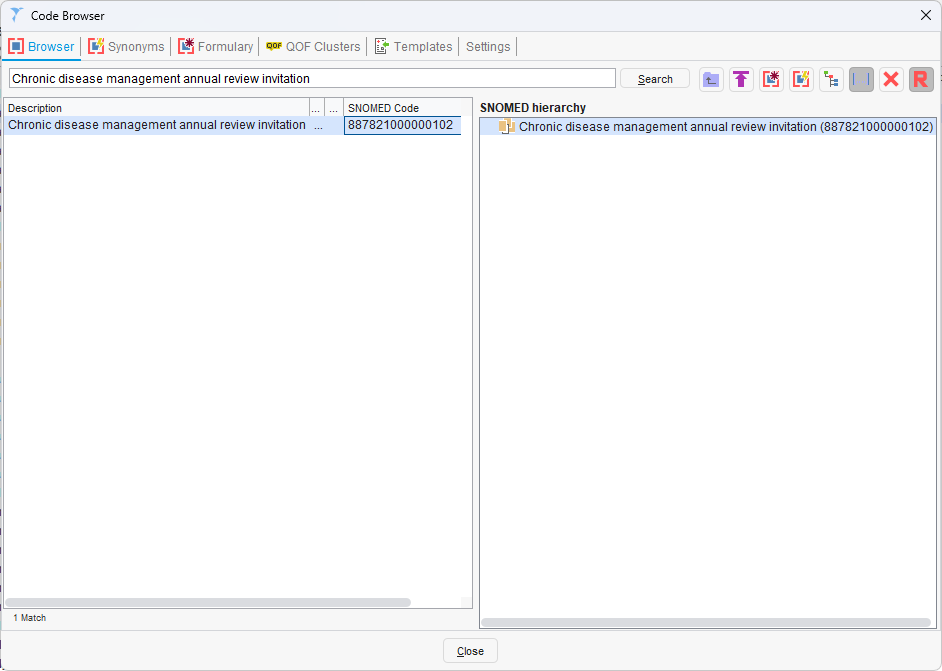
- Click OK. Set the event date if backdating the invitation, and any notes to be added with the code if you so wish.
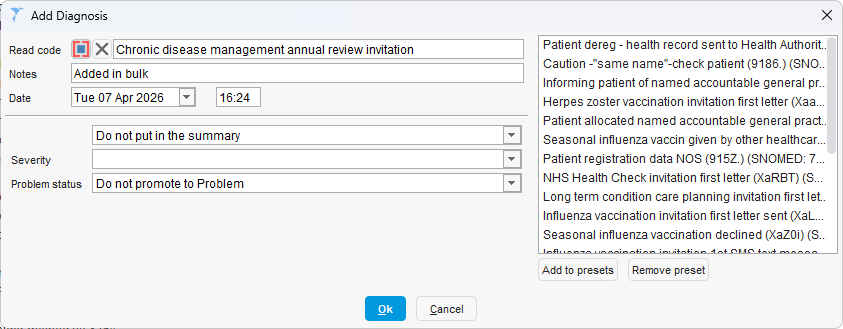
- Click OK to add the code to all selected patients.
⚠️Please Note:
- Preset codes can be added in this window by selecting Add to presets, allowing the invite code to be quickly selected in future.
- The QOF invite code is not included in this process, as adding this code twice can automatically apply a QOF exception and remove the QOF alerts from the patient record. However we do have some handy reports that will help practices with any Outstanding QOF towards the end of the QOF year. More information on these can be found here.
- The invite code can be added in the SytsmOne Communications Annexe, which will both code the invite and send the electronic message to the patient.
Viewing Patient Conditions
Whilst practices can send invites in bulk regardless of condition, some may prefer to review which long-term conditions each patient has before sending an invite.
This can be particularly useful where:
- practices want to group patients into condition-specific clinics
- different invitation messaging is used depending on condition
- there is a need to prioritise certain conditions over others
Viewing a patient’s conditions allows practices to:
- understand why a patient has been included in a report
- identify any additional conditions that may require review
- ensure the most appropriate invite method or clinic is selected
⚠️Important
This step is optional and dependent on practice workflow.
Practices may choose to:
- send invites in bulk without reviewing individual conditions, or
- review patients in more detail before deciding how to invite them
Both approaches are supported within the LTC recall process.
A Report Output is used to view which conditions a patient has. From any of the reports mentioned above in the How to send and code 1st invites section:
- Run the report and then Right Click > Show Patients
- At the top of this screen, click ‘Select Output’
- Click ‘Pre-defined report output’. You then have a choice of 'LTC Diagnosis - QOF +IIF + Best Practice' or 'LTC Diagnosis - QOF only'. Choose the option depending on which conditions you are inviting in for, and click OK.
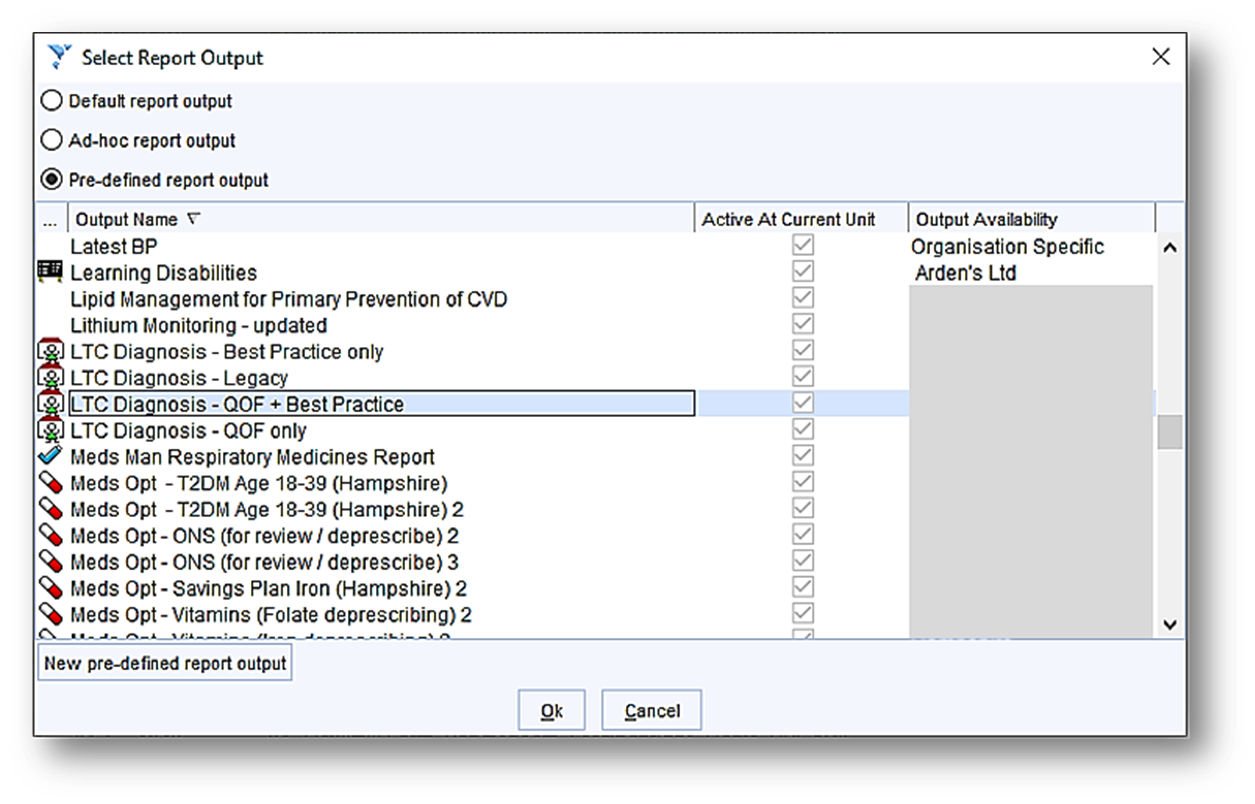
You will then see a grid of the patients with their different diagnosis.
- Click the top of each column on the LTC name to sort the rows by this diagnosis.
- You can then select the patients that you wish to send an invite to depending on their diagnosis and exclude those you do not want to send an invite to.
⚠️Important
Due to limitations with the Report Output functionality in SystmOne, the columns will display the most recent code recorded for each condition.
For some conditions (e.g. Asthma), this may mean that a code such as ‘Asthma resolved’ is shown instead of an active diagnosis.
Patients with a ‘resolved’ code do not require a review for that condition and can be excluded for that specific LTC.
However, they may still appear in the report due to other active conditions that require inviting.
How to Send and Code 2nd Reminders
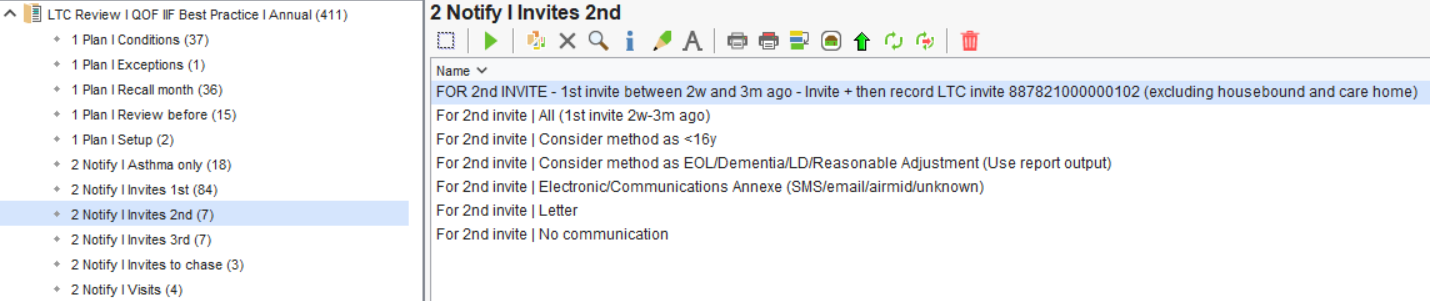
The process to send 2nd reminders is the same as 1st invite, with the same generic invitation code being used once sent. Patients remain in these reports for up to 3 months if no further action is taken.
How to Send and Code 3rd Reminders
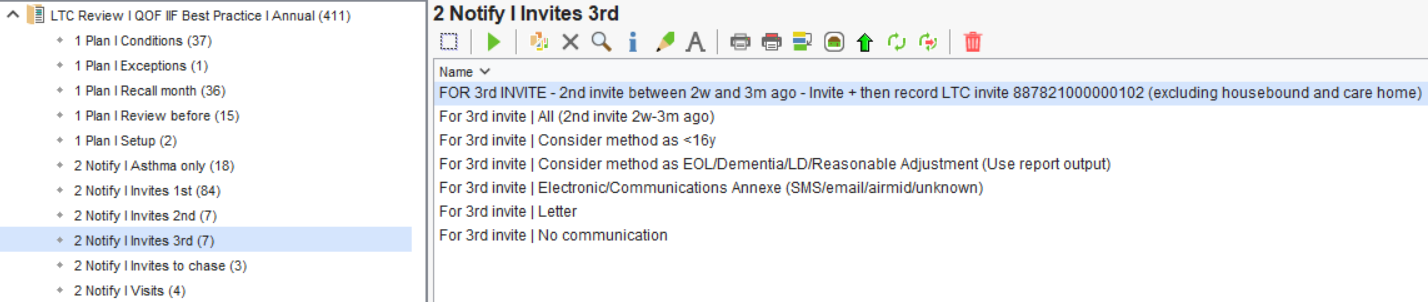
Sending questionnaires
- Right-click on the 2 Notify I Asthma only folder and select Run. For example, to send a questionnaire to asthma-only patients with a recall month of April, run the report: 1a For 1st Invite | Has Asthma Only – Send Asthma Questionnaire + Add 1st Invite Code – April Recall.
- Once the report has run, right-click on the report and select Show Patients to display the list of patients.
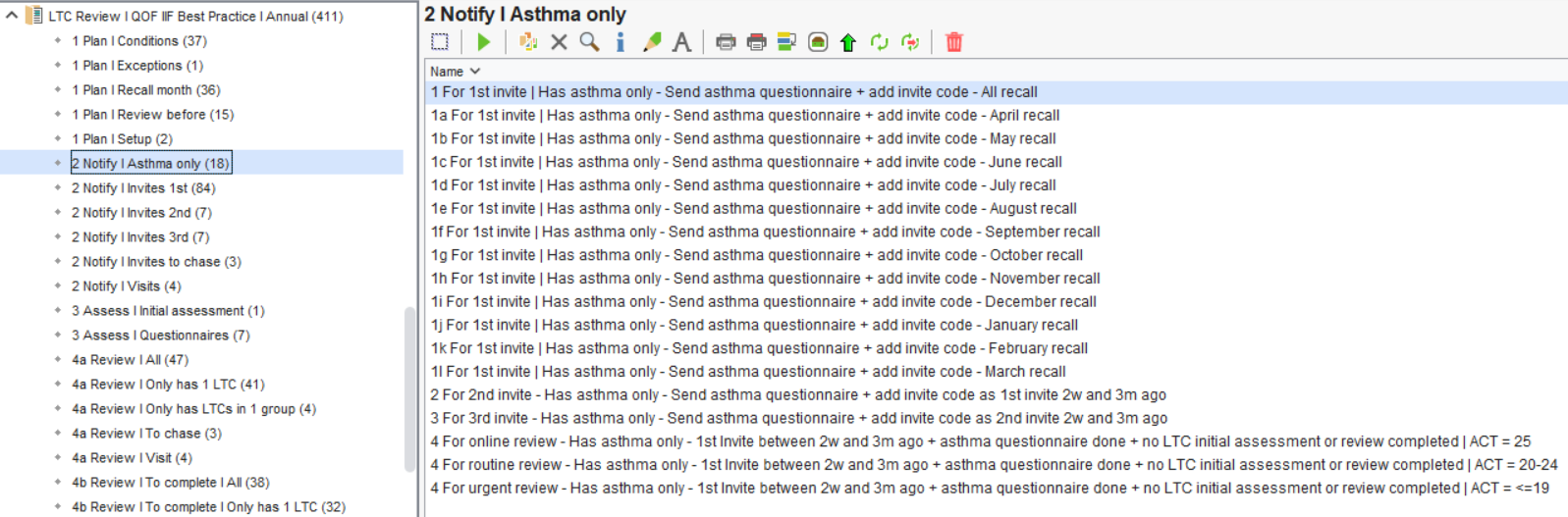
A questionnaire can be sent in bulk by selecting the patients on this list, or can be done direct from the report name in the folder.
- Either select your patients from the list, or select the name of the report in the folder, and Right Click > Actions > Use Communications Annexe.
- In the Communications Annexe window that opens, tick the 'Use Preferred Contact Method' option at the top.
- In the drop down select whether you want the default message to be 'Send SMS', 'Send email' or 'Send Airmid notification'.
- Click on the icon next to 'Add code' to bring up the code browser. Then search for Chronic disease management annual review invitation (887821000000102). Select this code and click OK.
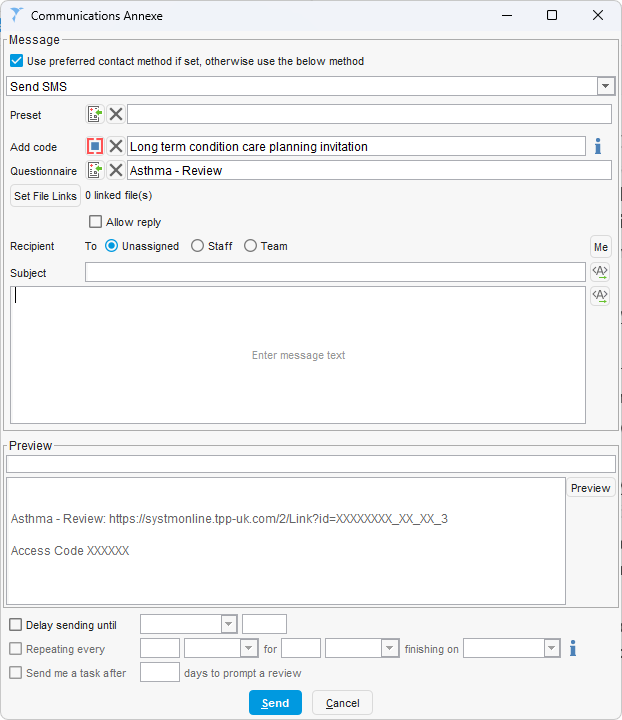
- Click on the icon next to 'Questionnaire' and in the window that opens, open the 'Questionnaires For Review Appointments' folder and select 'Asthma - Review' and click OK.
- Add a Subject and any text you like in the 'Enter message text' box.
- When you are ready to send the questionnaire, click 'Send'.
This will send the questionnaire to the patients selected, and also code that they have had their '1st Invite'. It is important to add the invite code, as this ensures they come off the main '1st Invite' reports and stops them receiving 2 invites unnecessarily.
⚠️For more information on how to send Questionnaires in SystmOne, please see this article.
 The 2
The 2
The 'For 2nd invite - Has asthma only - Send asthma questionnaire + add 2nd invite code as 1st invite 3w and 3m ago' and '3 For 3rd invite - Has asthma only - Send asthma questionnaire + add 3rd invite code as 2nd invite 3w and 3m ago' reports can then be used to follow up these patients with another reminder or questionnaire if they have not replied or answered the questionnaire yet. Again, just code the patients with Chronic disease management annual review invitation (887821000000102) once the reminder has been sent.
The bottom 3 reports can be used to follow up patients who have completed the questionnaire and may need it reviewed further, dependent on the ACT score.
Chasing Outstanding Invitations
- had a 1st invite more than 3 months ago but no 2nd invite recorded
- had a 2nd invite more than 3 months ago but no 3rd invite recorded
- had a 3rd invite more than 1 month ago and still have no review recorded
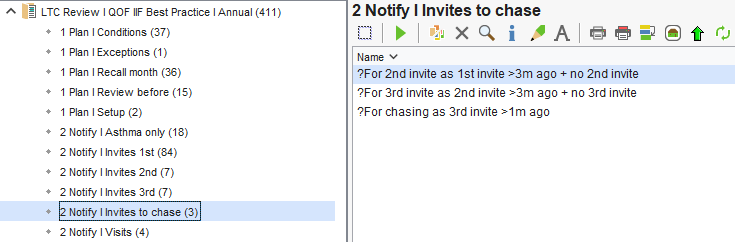
- In the Clinical Reporting screen, navigate to Arden's Ltd > LTC Reviews | QOF | IIF or LTC Reviews | QOF | IIF and Best Practice.
- Select the 2 Notify | Invites to chase sub-folder.
The following reports are available:
- ?For 2nd invite as 1st invite >3m ago + no 2nd invite
- ?For 3rd invite as 2nd invite >3m ago + no 3rd invite
- ?For chasing as 3rd invite >1m ago
Run the relevant report and review the patient list.
Practices can then decide whether to send another reminder or contact the patient using their usual communication method.
How to Action Visit Patients
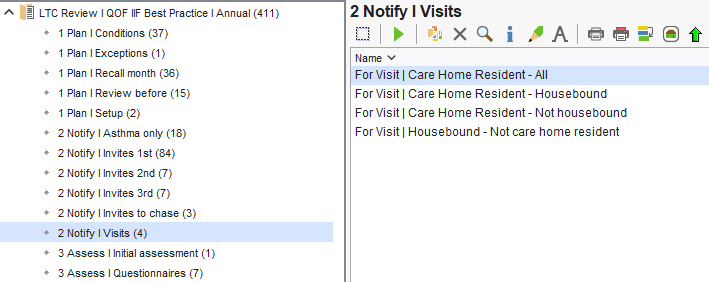
- In the Clinical Reporting screen, navigate to Arden's Ltd > LTC Reviews | QOF | IIF or LTC Reviews | QOF | IIF and Best Practice
- Select the 2 Notify | Visits sub-folder.
The following reports are available:
- Care Home Resident – All
Includes all patients coded as living in a Care Home, regardless of whether they are also coded as housebound. - Care Home Resident – Housebound
Includes patients coded as Care Home Residents who also have a Housebound code recorded. - Care Home Resident – Not housebound
Includes patients coded as Care Home Residents who do not have a Housebound code recorded. - Housebound – Not care home resident
Includes patients coded as Housebound who are not coded as living in a Care Home.
These reports can be used to organise and plan visits to ensure these patients receive their annual LTC reviews.
Identifying Which Condition a Patient Has Been Invited For
Once a patient has received their notification and contacts the practice to book an appointment, the receptionist can easily see which condition(s) the patient has been invited for.
- Open the patient record
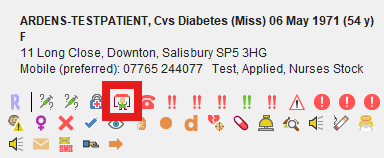
- Open the LTC Review template by clicking on the highlighted icon under that patients name in the top right
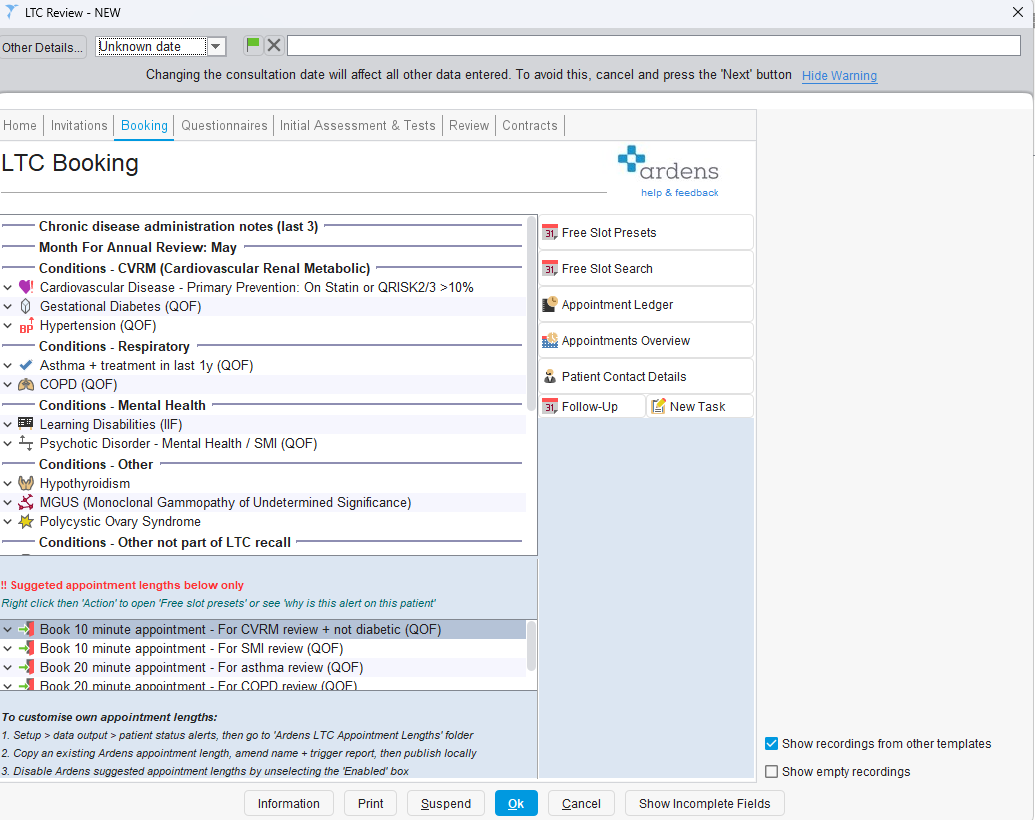
- Click on the Booking tab. The left hand side view will show a list of the patients conditions.
- The right hand side will have buttons to navigate to the practice Appointment Ledger, or open up the Free Slot Search or Free Slot Presets screen to help book the appropriate appointment.
- At the bottom we have added some suggested book appointment lengths. Please note you can customise these lengths yourself, by following the instructions at the bottom on the booking tab page,.
Additional Support
- Register for our LTC webinars – covering key updates, practical demonstrations, and best practice tips.
- Explore more helpful Support Articles.
- Book training for your GP Practice, PCN or ICB.