Plan > Notify > Assess > Review > Evaluate
TABLE OF CONTENTS
Introduction
Patients will appear in the Review reports 3 days after an initial assessment has been completed, allowing time for results (e.g. blood tests) to be returned and recorded.
These reports provide an opportunity for a clinician to review the patient record and decide the most appropriate next step, rather than automatically booking all patients into a face-to-face appointment.
Depending on clinical need and practice workflow, the clinician may:
- Book a face-to-face review
- Arrange a telephone or remote consultation
- Confirm no further action is required at that time
This stage supports a “review before booking” approach, helping ensure that appointments are used efficiently and unnecessary clinic attendance is reduced.
Review Reports
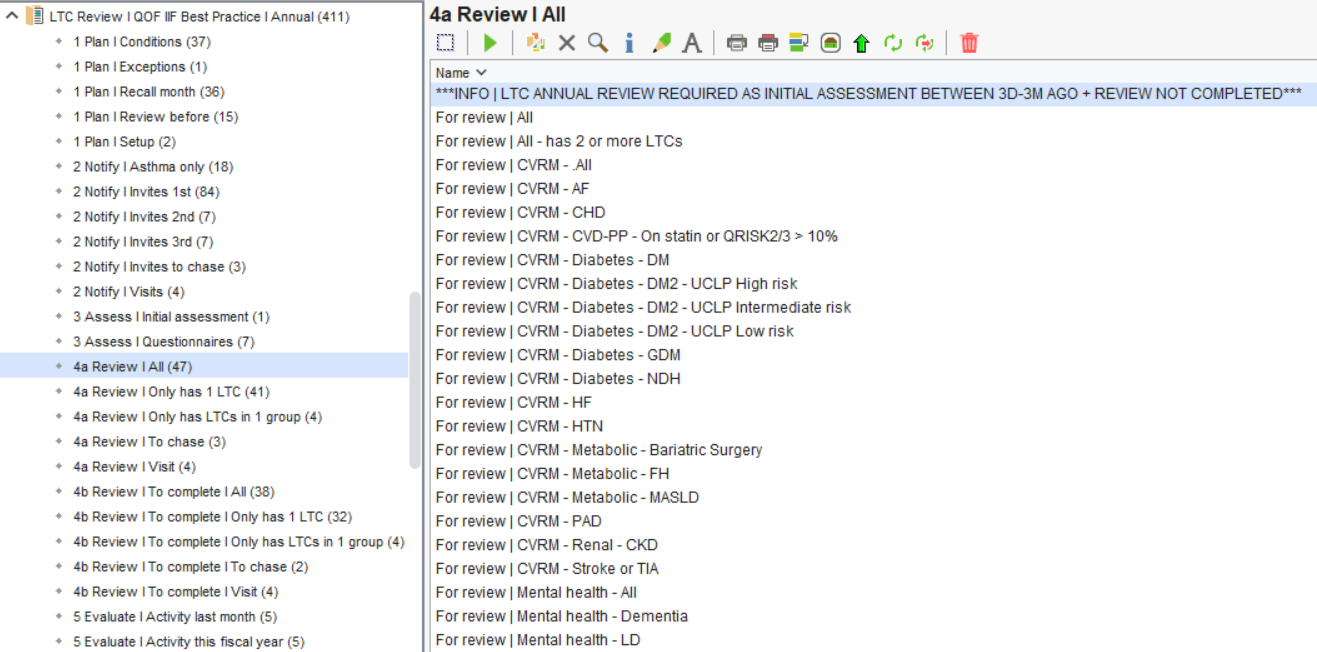
All
- cardiovascular
- mental health
- respiratory
- diabetes
Only has 1 LTC
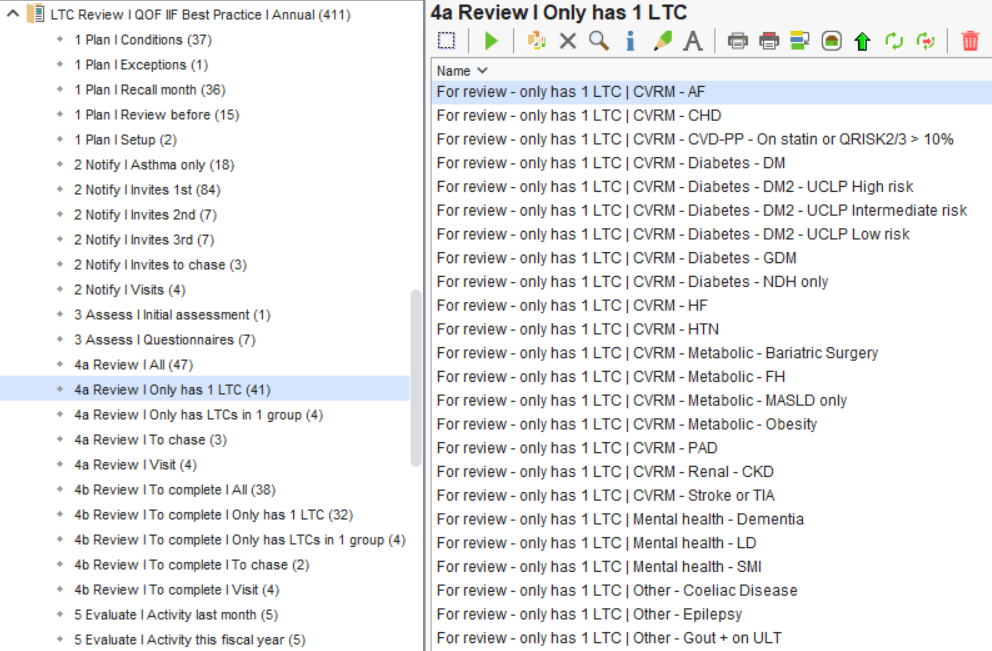
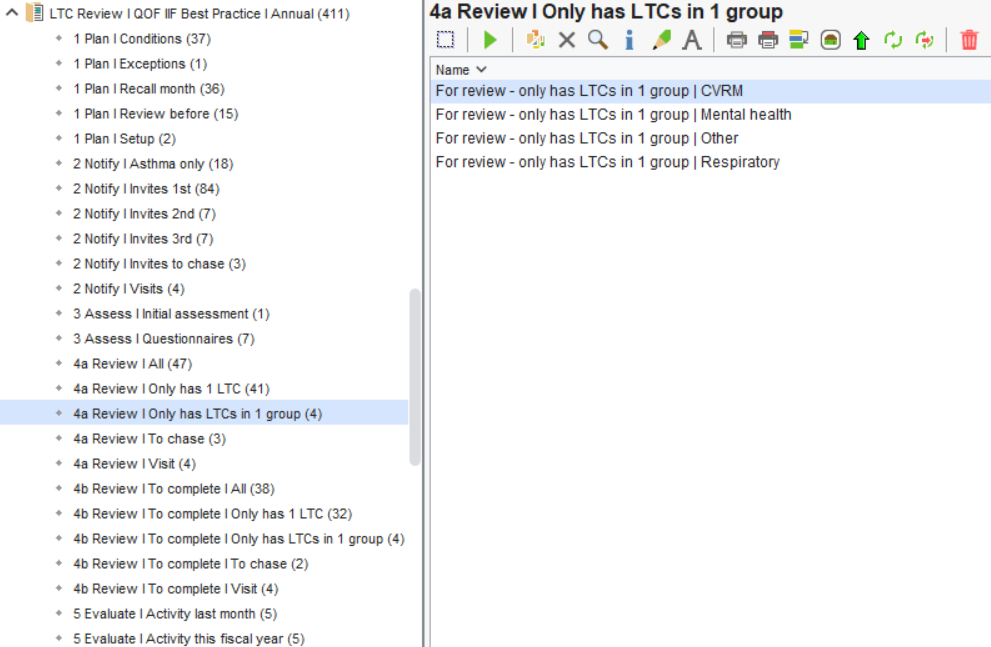
Only has 1 LTC group
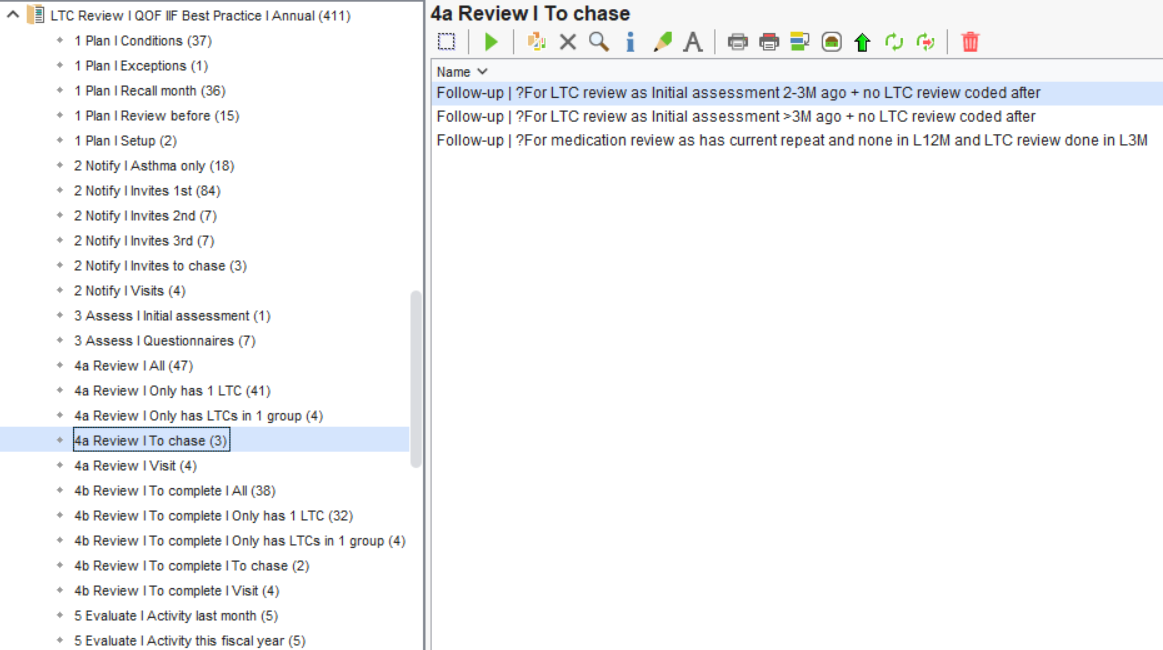
To chase
- A full review appointment is required, or
- The review can be completed through alternative methods (e.g. remote review or no further action)
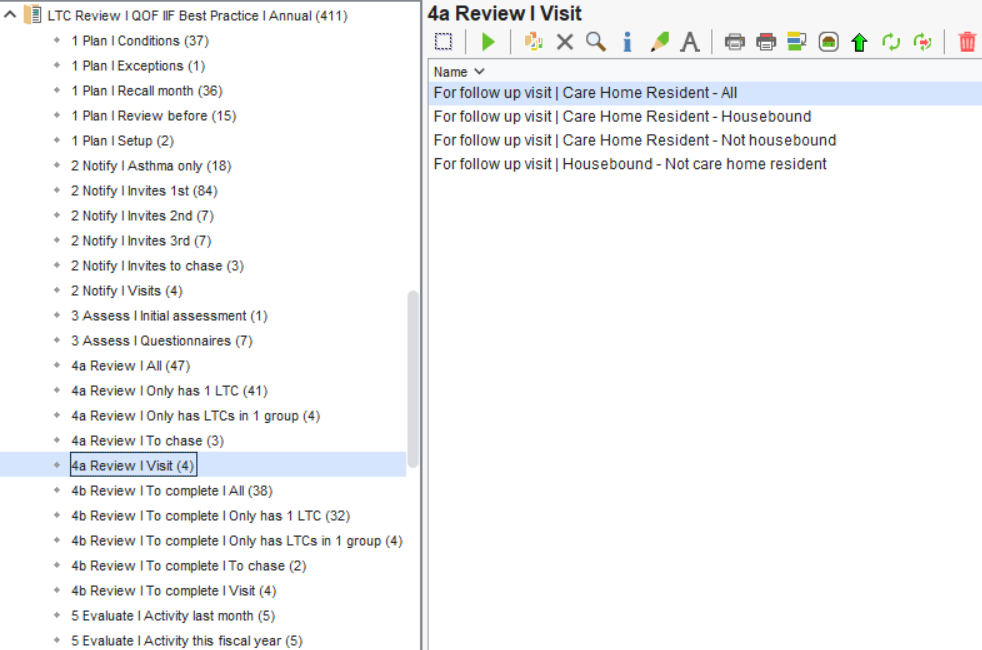
Visit
LTC Review Template
The template supports:
- Structured recording aligned to QOF and best practice
- Prompts for required monitoring and assessments
- Clinical decision-making and management planning
- Risk stratification to support prioritisation of care
- Open the patient record
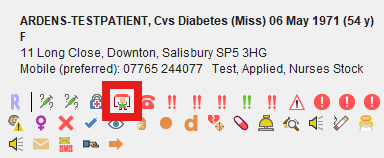
- Open the LTC Review template by clicking on the highlighted icon under that patients name in the top right
- In the template that opens, click on the Review tab.
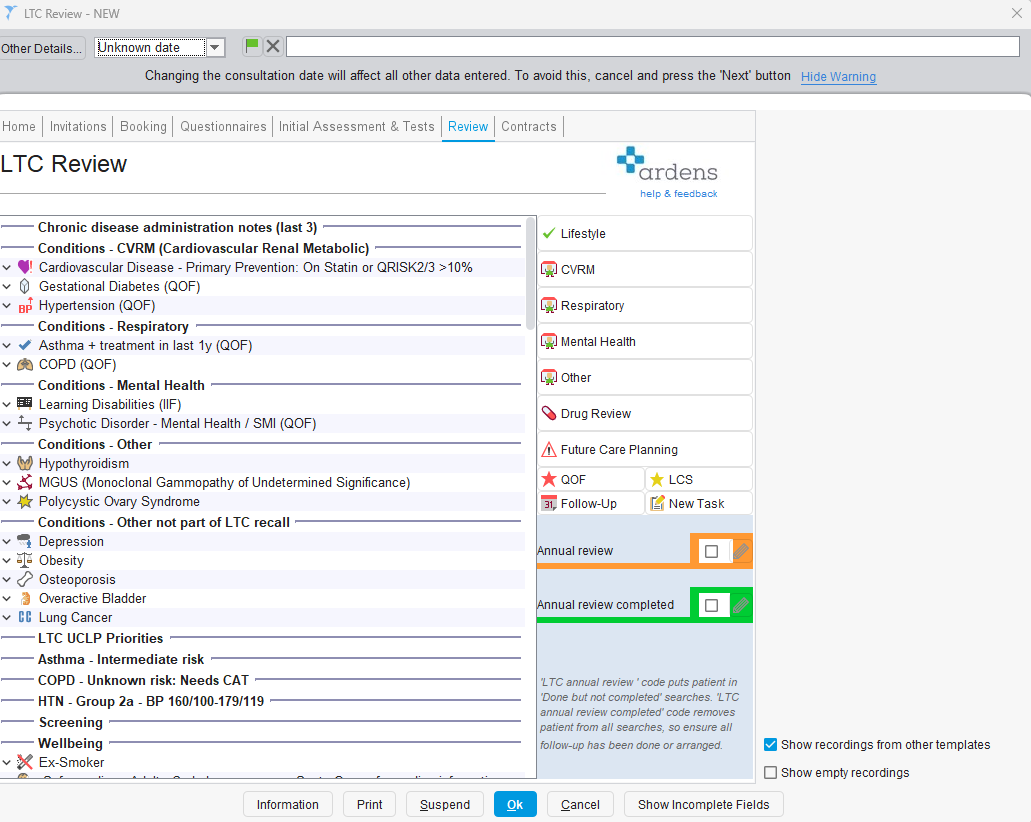
The layout is similar to the Initial Assessment & Tests page, but instead of showing what tests are required, it displays the results that have already been recorded, including blood test results.
Left-hand side
The main window provides a structured overview of the patient, including:
- Their LTC conditions (grouped by clinical area) any LTCs that are part of QOF will have (QOF) at the end of the condition
- Any relevant alerts (e.g. screening, safeguarding)
- Outstanding QOF or best practice work
- Clinical priorities and risk indicators
- Recent test results (displayed further down the page)
This allows clinicians to quickly see:
- What has already been completed
- What still needs reviewing or actioning
- Whether follow-up is required
Right-hand side
The right-hand panel provides quick access to the relevant review templates, grouped by condition type:
- Lifestyle
- CVRM
- Respiratory
- Mental Health
- Other
These will only be active if the patient has a condition within that group.
This allows clinicians to:
- Complete a full structured review, or
- Focus on specific condition groups as needed
For example, one clinician may complete a CVRM review, while another completes a respiratory review.
Review Templates (e.g. CVRM, Respiratory, Mental Health, Other)
Selecting one of the options on the right-hand side (e.g. CVRM) will open a structured review template for that group of conditions.
These templates support a full, consistent LTC review, ensuring all relevant information is captured and coded correctly.
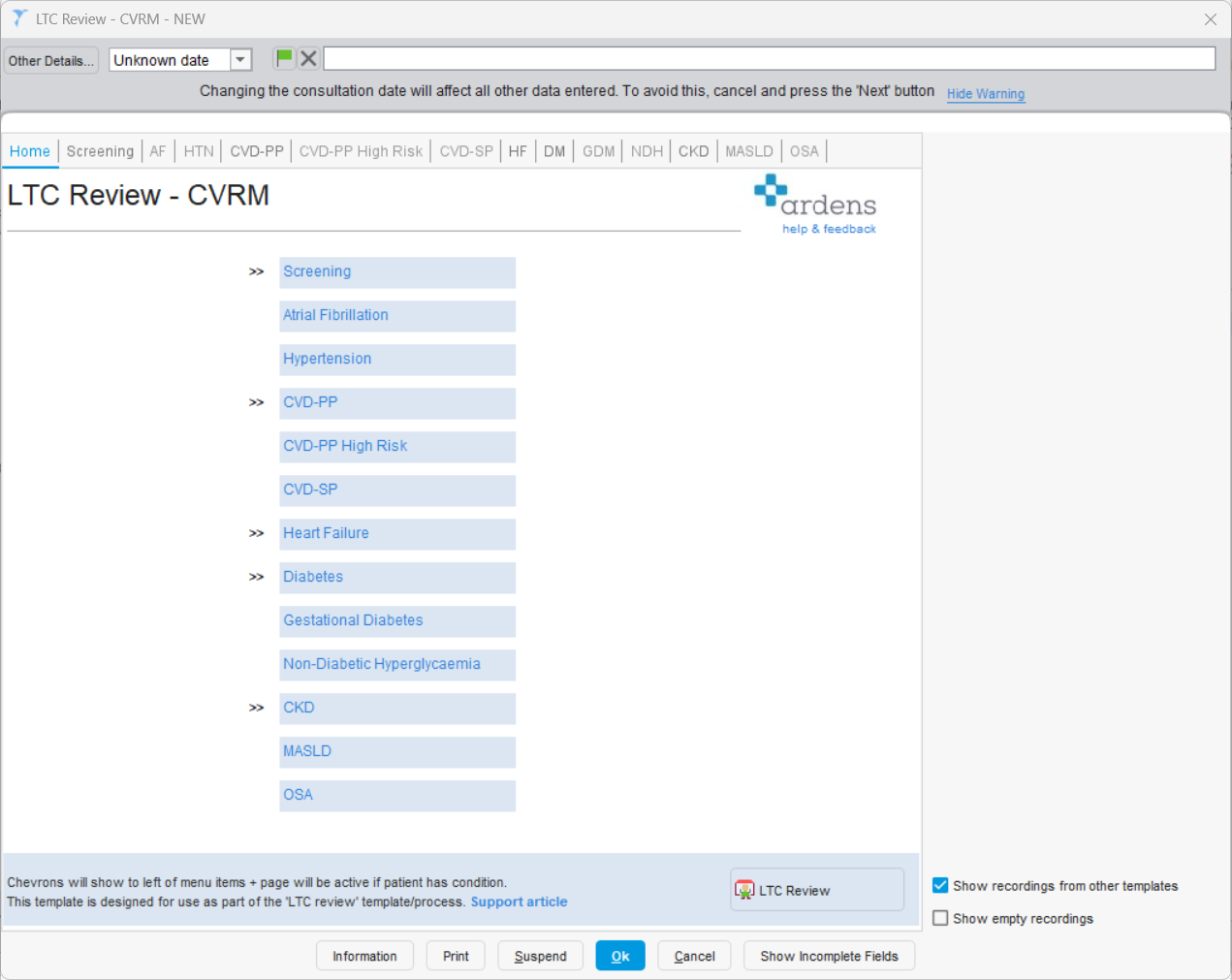
Each template follows a similar structure:
- Sections are grouped by condition (e.g. AF, Hypertension, Diabetes)
- Chevrons (>>) indicate which areas are relevant for the patient
- Tabs will be greyed out if the patient does not have that condition
This allows clinicians to quickly focus only on what is relevant for that patient.
Structured data entry
Each section includes fields to record key clinical information, ensuring consistency across reviews.
QOF indicators
Red stars highlight areas linked to QOF requirements, helping ensure all necessary indicators are completed.
Clinical decision support (traffic light system)
Colour-coded guidance is used throughout the template to support clinical decision-making:
- Green – within expected/target range
- Amber – borderline or may require review
- Red – outside expected range / action required
This helps clinicians quickly identify where follow-up or intervention is required.
Existing data visibility
Where relevant, previously recorded values or codes will appear on the right-hand side when selecting a field.
This allows clinicians to:
- See what has already been done
- Avoid duplicating work
- Make informed decisions based on historical data
Outcome
By working through the relevant sections, clinicians can ensure that:
- All required QOF and best practice elements are completed
- Any clinical concerns are identified and acted upon
- The patient’s LTC review is fully documented and coded correctly
Completing the review
Once the relevant review template(s) have been completed and all required information has been recorded, click OK to close the template.
To finalise the process, the appropriate review status should then be selected on the right-hand side of the LTC Review page.
LTC annual review (amber tick)
This can be used if the review has been partially completed, for example where one clinician has completed part of the review and further input is required from another clinician.
Patients marked in this way will appear in the “Review – To complete” reports, allowing practices to track and complete outstanding work.
This step is optional and only required if further review activity is needed.
LTC annual review completed (green tick)
This should be selected once the review has been fully completed and all relevant actions have been taken.
Selecting this will:
- Remove the patient from all LTC recall and review reports
- Confirm the review is complete for the current fiscal year
In summary
Once all relevant sections have been reviewed and no further action is required, select LTC annual review completed to close the patient in the LTC process.
Contracts tab
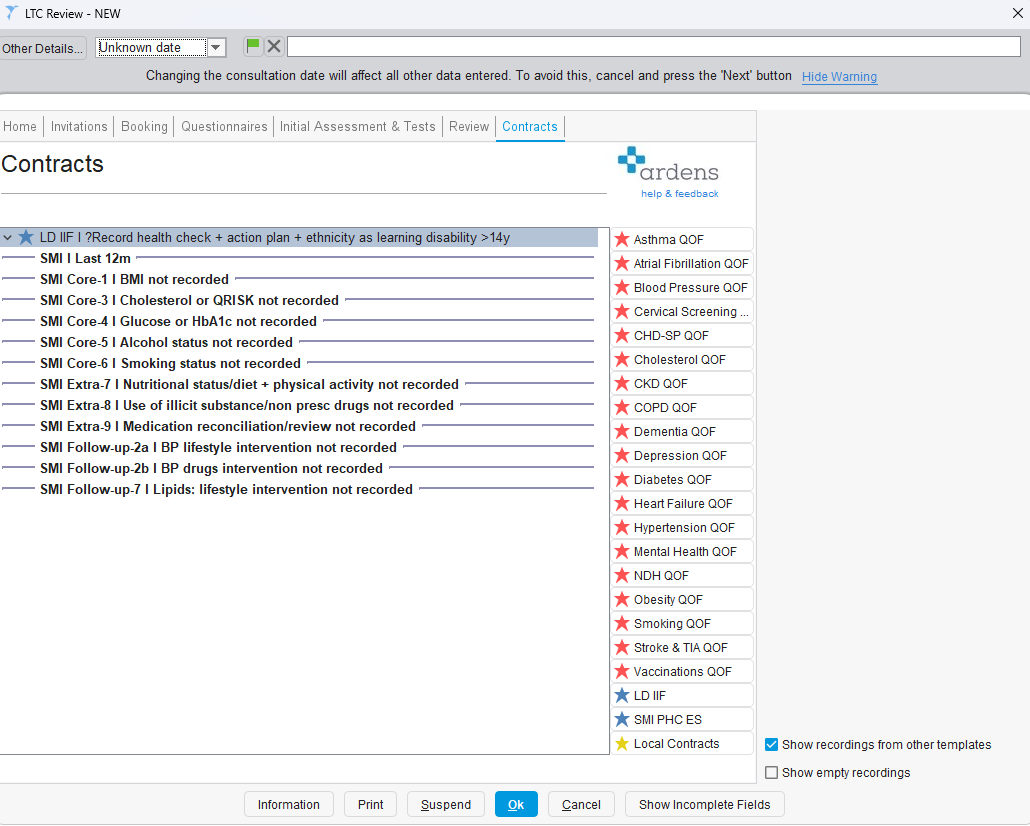
- Click on the 'contracts' tab within the LTC Review template to view outstanding indicators
- the main window on the left hand side will show any outstanding QOF, IIF or SMI PHC indicators
- Click on the red stars on the right hand side to access the relevant QOF template (to view the details of individual indicators & Personalised Care Adjustment codes)
- Bottom right of the template illustrated by a yellow star, you will find a link to access your local contract template
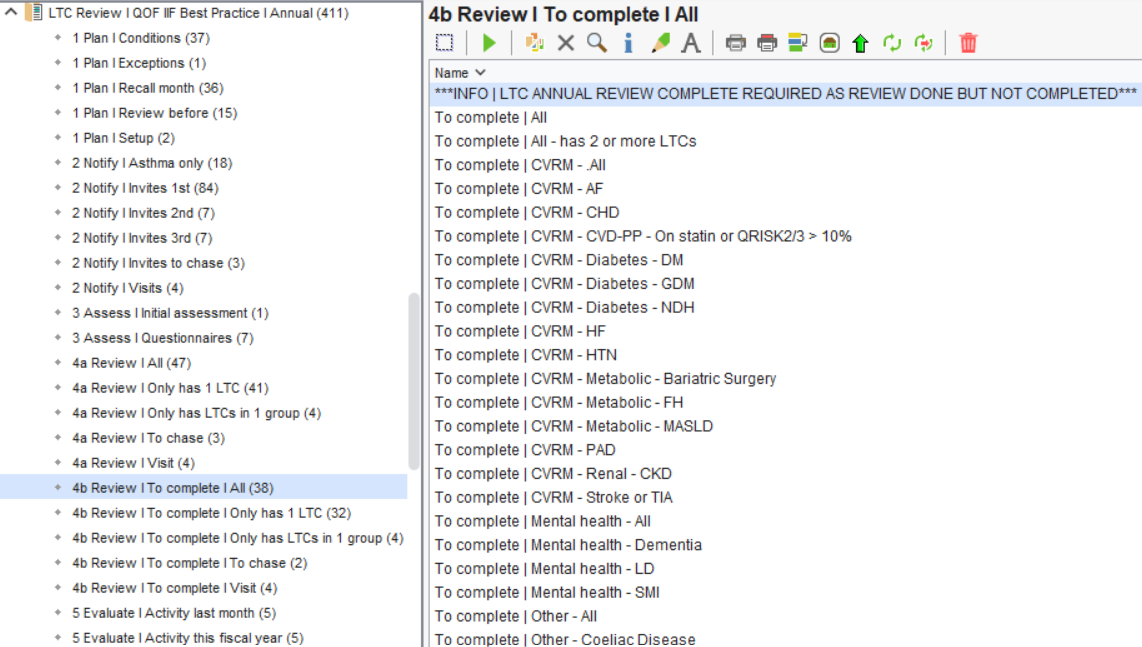
Review – To complete reports
These are typically patients where the LTC annual review (amber tick) has been selected, indicating that further work is still required.
How these reports are structured
- All – All patients with incomplete reviews
- Only has 1 LTC – Patients with a single condition
- Only has LTCs in 1 group – Patients within one clinical group (e.g. CVRM, Respiratory)
- To chase – Patients whose review was started some time ago but remains incomplete
- Visit – Care home or housebound patients requiring completion
Using these reports in practice
- Track patients who still require review activity
- Identify which part of the review remains outstanding
- Allocate work to the appropriate clinician or clinic
- Ensure no patients are left with partially completed reviews